so far we have used git and bash to accomplish familiar goals, and git and bash feel like just extra work for familiar goals.
First, we’ll finish where we left off last class
What if I edit the file in two places?
One of the biggest advantages of git is that it is distributed. This gives us great flexibility, but also allows us to make things complicated.
Today we will see how to fix this.
First, we’ll go back to our github inclass folder.
cd Documents/inclass/systems/gh-inclass-sp26-brownsarahm/and check what is in the repo
lsabout.md README.mdand check in with git:
git statusinteractive rebase in progress; onto 7579d39
Last command done (1 command done):
pick 16d117e # add another fun fact
No commands remaining.
You are currently rebasing branch 'fun_fact' on '7579d39'.
(fix conflicts and then run "git rebase --continue")
(use "git rebase --skip" to skip this patch)
(use "git rebase --abort" to check out the original branch)
Unmerged paths:
(use "git restore --staged <file>..." to unstage)
(use "git add <file>..." to mark resolution)
both modified: about.md
no changes added to commit (use "git add" and/or "git commit -a")Remember we intentionally created a merge conflict [last class]
the branches have diverged means that they do not agree and that they each have at least one commit that is different from the other.
git tells us that we are in the middle of a rebase
it also tells us what file is the problem. Let’s look at it.
nano about.mdIt looked like this:
1 2 3 4 5 6 7 8 9# Sarah <<<<<<< HEAD I started at URI in 2020 I skied competitively in HS ======= I started at URI in 2020 I won NSF CAREER in 2025 >>>>>>> 16d117e (add another fun fact)
All we have to do to fix it, is edit the file so that it has what we want.
In this case, we use nano we remove the markup (lines 3,6 and 9) and the duplicated line, 7.
In general you can keep either set, both, or a different mixture. The point is that the same line(s) were edited in different ways and git needs you to pick which is better. It does tedious things for us, but it is not a judge.
VS code will make resolving even easier
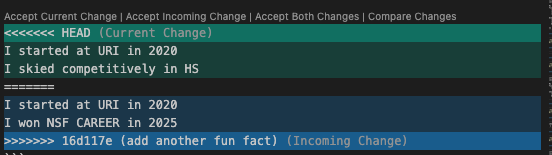
Figure 1:Thismerge conflict rendered by vs code while I worked on the notes
cat about.md# Sarah
I started at URI in 2020
I skied competitively in HS
I won NSF CAREER in 2025Then back to see what git says:
git status1 2 3 4 5 6 7 8 9 10 11 12 13 14 15interactive rebase in progress; onto 7579d39 Last command done (1 command done): pick 16d117e # add another fun fact No commands remaining. You are currently rebasing branch 'fun_fact' on '7579d39'. (fix conflicts and then run "git rebase --continue") (use "git rebase --skip" to skip this patch) (use "git rebase --abort" to check out the original branch) Unmerged paths: (use "git restore --staged <file>..." to unstage) (use "git add <file>..." to mark resolution) both modified: about.md no changes added to commit (use "git add" and/or "git commit -a")
Still the same, but notice it tells us (on the highlighted line) to use add to mark the file fixed.
Let’s do that.
git add .and again
git statusinteractive rebase in progress; onto 7579d39
Last command done (1 command done):
pick 16d117e # add another fun fact
No commands remaining.
You are currently rebasing branch 'fun_fact' on '7579d39'.
(all conflicts fixed: run "git rebase --continue")
Changes to be committed:
(use "git restore --staged <file>..." to unstage)
modified: about.mdNow ready to commit
so we do that
git commit -m 'resolve conflict'[detached HEAD 0c14d93] resolve conflict
1 file changed, 2 insertions(+)and one more
git status1 2 3 4 5 6 7 8 9interactive rebase in progress; onto 7579d39 Last command done (1 command done): pick 16d117e # add another fun fact No commands remaining. You are currently editing a commit while rebasing branch 'fun_fact' on '7579d39'. (use "git commit --amend" to amend the current commit) (use "git rebase --continue" once you are satisfied with your changes) nothing to commit, working tree clean
now we are happy with changes so we continue (see highlight above)
and then we can finish
git rebase --continueSuccessfully rebased and updated refs/heads/fun_fact.What happens if I use cat without an argument?
Remember arguments are required and cat has one.
If we don’t give it one, then it uses STDIN and waits
catif we type it will repeat every time we press enter/return
jkjljlksjflsj
jkjljlksjflsj
kldjsfls
kldjsfls
To exit, use ctrl/cmd and d to close stdin.
Setting the stage
To prepare for today’s class you examined an open source project.
We noticed that while the contents inside and the distribution of languages used as well as the specific code, or the content of the files was all different, a lot of the organization was similar.
Most had certain community health files and basic info files:
CONTRIBUTINGCODE_OF_CONDUCTREADME.MDLICENSEGOVERNANCE.MD
Important references
Use these for checking facts and resources.
Organizing a project (working with files)
A common question is about how to organize projects. While our main focus
in this class session is the bash commands to do it, the task that we are
going to do is to organize a hypothetical python project
Put another way, we are using organizing a project as the context to motivate practicing with bash commands for moving files.
A different the instructor might go through a slide deck that lists commands and describes what each one does and then have examples at the end. Instead, we are going to focus on organizing files, and I will introduce the commands we need along the ways.
Then go to the main branch
git checkout mainSwitched to branch 'main'
Your branch is up to date with 'origin/main'.NOw let’s pull to make sure we are up to date
git pullremote: Enumerating objects: 1, done.
remote: Counting objects: 100% (1/1), done.
remote: Total 1 (delta 0), reused 0 (delta 0), pack-reused 0 (from 0)
Unpacking objects: 100% (1/1), 916 bytes | 916.00 KiB/s, done.
From https://github.com/compsys-progtools/gh-inclass-sp26-brownsarahm
f6886ba..ba7a1e6 main -> origin/main
Updating f6886ba..ba7a1e6
Fast-forward
API.md | 1 +
CONTRIBUTING.md | 1 +
LICENSE.md | 1 +
_config.yml | 1 +
_toc.yml | 1 +
abstract_base_class.py | 1 +
alternative_classes.py | 1 +
example.md | 1 +
helper_functions.py | 1 +
important_classes.py | 1 +
philosophy.md | 1 +
scratch.ipynb | 1 +
setup.py | 1 +
tests_alt.py | 1 +
tests_helpers.py | 1 +
tests_imp.py | 1 +
tsets_abc.py | 1 +
17 files changed, 17 insertions(+)
create mode 100644 API.md
create mode 100644 CONTRIBUTING.md
create mode 100644 LICENSE.md
create mode 100644 _config.yml
create mode 100644 _toc.yml
create mode 100644 abstract_base_class.py
create mode 100644 alternative_classes.py
create mode 100644 example.md
create mode 100644 helper_functions.py
create mode 100644 important_classes.py
create mode 100644 philosophy.md
create mode 100644 scratch.ipynb
create mode 100644 setup.py
create mode 100644 tests_alt.py
create mode 100644 tests_helpers.py
create mode 100644 tests_imp.py
create mode 100644 tsets_abc.pynext we are going to pretend we worked on the project and made a bunch of files
I gave a bunch of files, each with a short phrase in them.
none of these are functional files
the phrases mean you can inspect them on the terminal
ls_config.yml LICENSE.md
_toc.yml philosophy.md
about.md README.md
abstract_base_class.py scratch.ipynb
alternative_classes.py setup.py
API.md tests_alt.py
CONTRIBUTING.md tests_helpers.py
example.md tests_imp.py
helper_functions.py tsets_abc.py
important_classes.pythese are all actually plain text files
cat concatenates the contents of a file to stdout, which is a special file that our terminal reads
(think about in C you can write to STDOUT or STDERR, some IDEs have separate visual panels for these two places)
then create a new branch from main.
git checkout -b organizeSwitched to a new branch 'organize'Manipulating the Streams
The STDOUT stream can be manipulated. Any time we open or manipulate a file, it goes through a stream. So we can use other files in place of how we by default use STDOUT.
cat README.md[](https://classroom.github.com/open-in-codespaces?assignment_repo_id=22432670)Echo allows us to send a message to stdout.
echo "# Readme"# ReadmeReferences
C is not an open source language in the typical sense so there is no “official” C docs
We can also redirect the contents of a command from stdout to a file in bash. Like file operations while programming there is a similar concept to this mode.
There are two types of redirects, like there are two ways to write to a file, more generally:
overwrite (
>)append (
>>)
We can add contents to files with echo and >>
echo "# Readme" >> README.mdThen we check the contents of the file and we see that the new content is there.
cat README.md[](https://classroom.github.com/open-in-codespaces?assignment_repo_id=22432670)
# ReadmeIt’s there!
We can redirect other commands too:
git status > curgitwe see this created a new file
ls_config.yml important_classes.py
_toc.yml LICENSE.md
about.md philosophy.md
abstract_base_class.py README.md
alternative_classes.py scratch.ipynb
API.md setup.py
CONTRIBUTING.md tests_alt.py
curgit tests_helpers.py
example.md tests_imp.py
helper_functions.py tsets_abc.pyand we can look at its contents too
cat curgitOn branch organize
Changes not staged for commit:
(use "git add <file>..." to update what will be committed)
(use "git restore <file>..." to discard changes in working directory)
modified: README.md
Untracked files:
(use "git add <file>..." to include in what will be committed)
curgit
no changes added to commit (use "git add" and/or "git commit -a")Connected bash commands work right to left
From the contents of the file, we can see something really important about how the redirect (and other ways of chaining bash commands together) work.
Notice that above, the curgit file is mentioned in the git status that is in the contents of the curgit file. We didn’t create the file on purpose before we ran the line git status > curgit. This is because bash works partially right to left and then resolves after. So, what happens is:
the file
curgitis created and a stream to it is openedthe STDOUT stream is connected to that stream
git statusruns, it compares the working directory to the last commit, sends its output to STDOUT which is connected tocurgitthe file stream is closed.
this is not a file we actually want, which gives us a chance to learn another new bash command:
rm for remove, removes the entry for this file from the file table. Your computer keeps track of all of the paths and where in the disk (like the memory address) the corresponding content is. if we have no entry, we cannot, using normal tools, find the contents, though it is not erased from the disk or overwritten. The OS is then free to overwrite those bits if needed.
rm curgitNow we have made some changes we want, so let’s commit our changes.
git statusOn branch organize
Changes not staged for commit:
(use "git add <file>..." to update what will be committed)
(use "git restore <file>..." to discard changes in working directory)
modified: README.md
no changes added to commit (use "git add" and/or "git commit -a")git commit -a -m 'add title to readme'[organize 219c49c] add title to readme
1 file changed, 1 insertion(+)git statusOn branch organize
nothing to commit, working tree cleanNow, let’s go back to thinking about redirects. We saw that with two >> we appended to the file. With just one what happens?
echo "# Readme" > README.mdWe check the file now
cat README.md# ReadmeIt wrote over. This would be bad, we lost content, but this is what git is for!
It is very very easy to undo work since our last commit.
This is good for times when you have something you have an idea and you do not know if it is going to work, so you make a commit before you try it. Then you can try it out. If it doesn’t work you can undo and go back to the place where you made the commit.
To do this, we will first check in with git
git statusOn branch organize
Changes not staged for commit:
(use "git add <file>..." to update what will be committed)
(use "git restore <file>..." to discard changes in working directory)
modified: README.md
no changes added to commit (use "git add" and/or "git commit -a")Notice that it tells us what to do (use "git restore <file>..." to discard changes in working directory). The version of README.md that we broke is in the working directory but not commited to git, so git refers to them as “changes” in the workign directory.
git restore README.mdthis command has no output, so we can check the file
cat README.md[](https://classroom.github.com/open-in-codespaces?assignment_repo_id=22432670)
# Readmeand with git
git statusOn branch organize
nothing to commit, working tree cleanBack how we wanted it!
Now we will add some text to the readme
echo "|file | contents |
> > | --| -- |
> > | abstract_base_class.py | core abstract classes for the project |
> > | helper_functions.py | utitly funtions that are called by many classes |
> > | important_classes.py | classes that inherit from the abc |
> > | alternative_classes.py | classes that inherit from the abc |
> > | LICENSE.md | the info on how the code can be reused|
> > | CONTRIBUTING.md | instructions for how people can contribute to the project|
> > | setup.py | file with function with instructions for pip |
> > | test_abc.py | tests for constructors and methods in abstract_base_class.py|
> > | tests_helpers.py | tests for constructors and methods in helper_functions.py|
> > | tests_imp.py | tests for constructors and methods in important_classes.py|
> > | tests_alt.py | tests for constructors and methods in alternative_classes.py|
> > | API.md | jupyterbook file to generate api documentation |
> > | _config.yml | jupyterbook config for documentation |
> > | _toc.yml | jupyter book toc file for documentation |
> > | philosophy.md | overview of how the code is organized for docs |
> > | example.md | myst notebook example of using the code |
> > | scratch.ipynb | jupyter notebook from dev |" >> README.md
this explains each file a little bit more than the name of it does. We see there are sort of 5 groups of files:
about the project/repository
code that defines a python module
test code
documentation
extra files that “we know” we can delete.
We also learn something about bash:
using the open quote " then you stay inside that until you close it. when you press enter the command does not run until after you close the quotes
Getting organized
First, we’ll make a directory with mkdir
mkdir docsnext we will move a file there with mv
mv philosophy.md docs/what this does is change the path of the file from .../gh-inclass-sp26-brownsarahm/philosophy.md to .../gh-inclass-sp26-brownsarahm/docs/philosophy.md
It does not rewrite the file contents to disk, so even for large files this is quick, it changes only the file table that stores each path and a disk address.
This doesn’t return anything, but we can see the effect with ls
ls_config.yml important_classes.py
_toc.yml LICENSE.md
about.md README.md
abstract_base_class.py scratch.ipynb
alternative_classes.py setup.py
API.md tests_alt.py
CONTRIBUTING.md tests_helpers.py
docs tests_imp.py
example.md tsets_abc.py
helper_functions.pyWe can also use ls with a relative or absolute path of a directory to list tht location instead of our current working directory.
ls docs/philosophy.mdMoving multiple files with patterns
We can use the * wildcard operator to move all files that match the pattern. We’ll start with the two yml (yaml)
files that are both for the documentation.
Warning
In class, I did this step wrong the first time.
mv *.ymlthen I looked
ls_toc.yml important_classes.py
about.md LICENSE.md
abstract_base_class.py README.md
alternative_classes.py scratch.ipynb
API.md setup.py
CONTRIBUTING.md tests_alt.py
docs tests_helpers.py
example.md tests_imp.py
helper_functions.py tsets_abc.pyand one is missing
and with status I noticed something more confusing
git statusOn branch organize
Changes not staged for commit:
(use "git add/rm <file>..." to update what will be committed)
(use "git restore <file>..." to discard changes in working directory)
modified: README.md
deleted: _config.yml
modified: _toc.yml
deleted: philosophy.md
Untracked files:
(use "git add <file>..." to include in what will be committed)
docs/
no changes added to commit (use "git add" and/or "git commit -a")It thinks _config.yml is deleted but _toc.yml was still there, with its content modified. THey were both supposed to go to a folder.
What happened is that in the command I ran the * was expanded, but there was no destination. It was equivalent to running
mv _config.yml _toc.ymlwhich would rename _config.yml to _toc.yml (we’ll continue with this idea shortly)
to fix it, we restore the two files
git restore _config.yml
git restore _toc.yml
We still use mv with a source and target, but the source can be a list of items and then the last is where they go.
So we wil run
mv *.yml docs/and bash will expand it to
mv _config.yml _toc.yml docs/we could have typed this longer version but we don’t need to!
Again, we confirm it worked by seeing that they are no longer in the working directory.
lsabout.md LICENSE.md
abstract_base_class.py README.md
alternative_classes.py scratch.ipynb
API.md setup.py
CONTRIBUTING.md tests_alt.py
docs tests_helpers.py
example.md tests_imp.py
helper_functions.py tsets_abc.py
important_classes.pyand that they are in docs
ls docs/_config.yml _toc.yml philosophy.mdWe see that most of the test files start with tests_ but one starts with
tsets_. We can fix this!
We can use mv to change the name as well. This is because “moving” a file and
is really about changing its path, not actually copying it from one location to
another and the file name is a part of the path.
mv tsets_abc.py tests_abc.pyThis changes the path from .../tsets_abc.py to .../tests_abc.py to. It is doing the same thing as when we use it to move a file from one folder to another folder, but changing a different part of the path.
lsabout.md LICENSE.md
abstract_base_class.py README.md
alternative_classes.py scratch.ipynb
API.md setup.py
CONTRIBUTING.md tests_abc.py
docs tests_alt.py
example.md tests_helpers.py
helper_functions.py tests_imp.py
important_classes.pyNow we make a new folder:
mkdir testsnd move all of the test files there:
mv tests*.py tests/lsabout.md helper_functions.py
abstract_base_class.py important_classes.py
alternative_classes.py LICENSE.md
API.md README.md
CONTRIBUTING.md scratch.ipynb
docs setup.py
example.md testsls tests/tests_abc.py tests_helpers.py
tests_alt.py tests_imp.pyHidden files
We are going to make a special hidden file and an extra one. We will use the following command:
touch .secret .gitignorelets put some content in the secret (it will actually not be going to GitHub)
echo "my dev secret" >> .secretWe also learn 2 things about touch and bash:
touchcan make multiple files at a timelists in
bashare separated by spaces and do not require brackets
let’s check with git
git statusOn branch organize
Changes not staged for commit:
(use "git add/rm <file>..." to update what will be committed)
(use "git restore <file>..." to discard changes in working directory)
modified: README.md
deleted: _config.yml
deleted: _toc.yml
deleted: philosophy.md
deleted: tests_alt.py
deleted: tests_helpers.py
deleted: tests_imp.py
deleted: tsets_abc.py
Untracked files:
(use "git add <file>..." to include in what will be committed)
.gitignore
.secret
docs/
tests/
no changes added to commit (use "git add" and/or "git commit -a")it shows the secret file, so if we did git add . it would share it.
We will add it to the .gitignore file
echo ".secret" >> .gitignoregit statusOn branch organize
Changes not staged for commit:
(use "git add/rm <file>..." to update what will be committed)
(use "git restore <file>..." to discard changes in working directory)
modified: README.md
deleted: _config.yml
deleted: _toc.yml
deleted: philosophy.md
deleted: tests_alt.py
deleted: tests_helpers.py
deleted: tests_imp.py
deleted: tsets_abc.py
Untracked files:
(use "git add <file>..." to include in what will be committed)
.gitignore
docs/
tests/
no changes added to commit (use "git add" and/or "git commit -a")and now it’s not there!
but the file still exists
ls -a. CONTRIBUTING.md
.. docs
.git example.md
.github helper_functions.py
.gitignore important_classes.py
.secret LICENSE.md
about.md README.md
abstract_base_class.py scratch.ipynb
alternative_classes.py setup.py
API.md testsand has content
cat .secretmy dev secretPrepare for Next Class
Bring git questions or scenarios you want to be able to solve to class (in your mind or comment here if that helps you remember)
Try read and understand the workflow files in your KWL repo, the goal is not to be sure you understand every step, but to get an idea about the big picture ideas and just enough to complete the following. Try to modify files, on a prepare branch, so that your name is already filled in and Zach is already requested as a reviewer when your experience badge (inclass) action runs. We will give the answer in class, but especially do not do this step on the main branch it could break your action.
Hints:
Look for bash commands that we have seen before
cpcopies a filecheck what the experience makeup action does
Badges
badge steps marked lab are steps that you will be encouraged to use lab time to work on. In this case, in lab, we will check that you know what to do, but if we want you to do revisions those will be done through the badge.
Review the notes from today
Create a merge conflict in your KWL repo on the branch for this badge and resolve it using your favorite IDE, then create another one and resolve it on GitHub in browser (this requires the merge conflict to occur on a PR). Describe how you created each conflict, show the files, and describe how your IDE helps or does not help in merge_conflict_comparison.md. Give advice for when you think someone should resolve a merge conflict in GitHub vs using an IDE. (if you do not regulary use an, IDE, try VSCode) You can put content in the file for this step for the purpose of making the merge conflicts for this exercise.
Clone the course website. Append the commands used and the contents of your
fall2025/.git/configto a file in your KWL called terminal_review.md (hint:historyoutputs recent commands and redirects can work with any command, not onlyecho). Edit theREADME.mdin the course website (you can add anything), commit, and try to push the changes. Describe what the error means and which GitHub Collaboration Feature you think would enable you to push? (answer in theterminal_review.md)lab Organize the provided messy folder in a Codepsace (details will be provided in lab time). Commit and push the changes. Answer the questions below in your kwl repo in a file called
terminal_organization.mdclone your
messy_repolocally and append thehistory.mdfile to a file calledterminal_organization.md
badge steps marked lab are steps that you will be encouraged to use lab time to work on. For this one in particular, I am going to give you the messy repo in lab.
Review the notes from today
Create a merge conflict in your KWL repo on the branch for this badge and resolve it using your favorite IDE, then create another one and resolve it on GitHub in browser (this requires the merge conflict to occur on a PR). Describe how you created each conflict, show the files, and describe how your IDE helps or does not help in merge_conflict_comparison.md. Give advice for when you think someone should resolve a merge conflict in GitHub vs using an IDE. (if you do not regulary use an, IDE, try VSCode) You can put content in the file for this step for the purpose of making the merge conflicts for this exercise.
(option) Get set up so that you can contribute to the course website repo from your local system. Note: you can pull from the
compsys-progtools/spring2026repo, but you do not not have push permission, so there is more to do than clone. Append the commands used and the contents of your localspring2026/.git/configto a git-remote-practice.md. Then, using a text editor (or IDE), wrap each log with three backticks to make them fenced code blocks and add headings to the sections.lab Organize the provided messy folder (details will be provided in lab time). Commit and push the changes. Clone that repo locally.
Organize a folder on your computer ( good candidate may be desktop or downloads folder), using only a terminal to make new directories, move files, check what’s inside them, etc. Answer reflection questions in a new file, terminal_organization_adv.md in your kwl repo. Tip: Start with a file explorer open, but then try to close it, and use only command line tools to explore and make your choices. If you get stuck, look up additional commands to do acomplish your goals.
# Terminal File moving reflection
1. How was this activity overall Did this get easier toward the end?
2. How was it different working on your own computer compared to the Codespace form?
3. Did you have to look up how to do anything we had not done in class?
4. When do you think that using the terminal will be better than using your GUI file explorer?
5. What questions/challenges/ reflections do you have after this?
6. Append all of the commands you used in lab below. (not from your local computer's history, from the codespace history)
Experience Report Evidence
Questions After Today’s Class
When moving files how does that work?
It changes the path.
How would you, using mv, pull a file from a subdirectory and move it to the current directory?
mv docs/target_file . would do it.